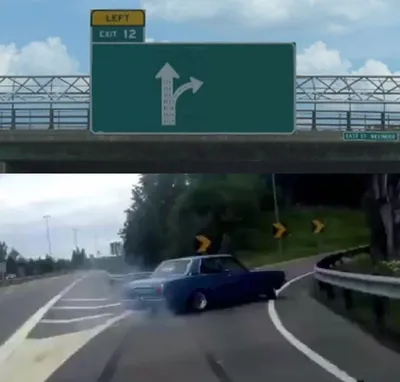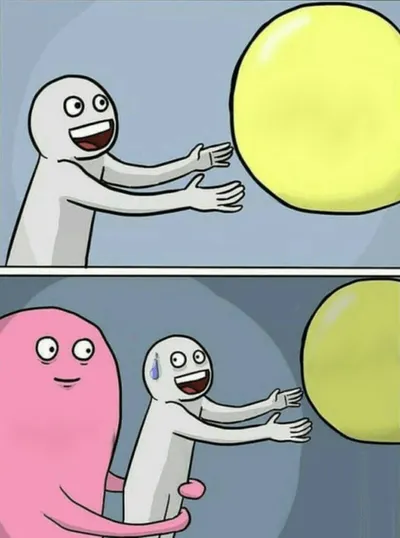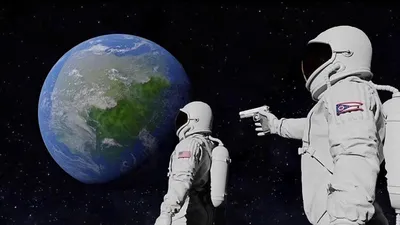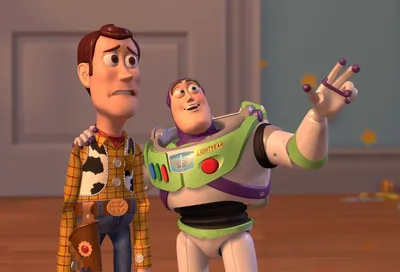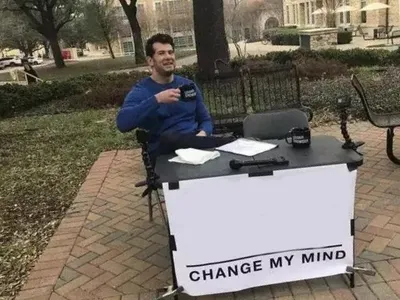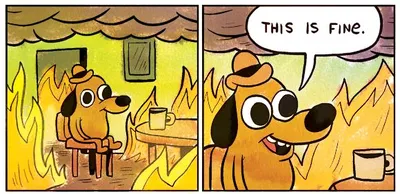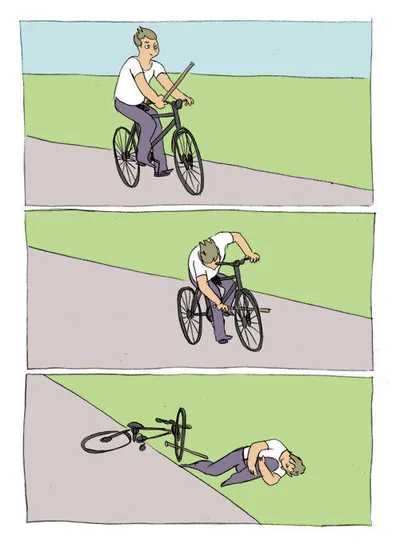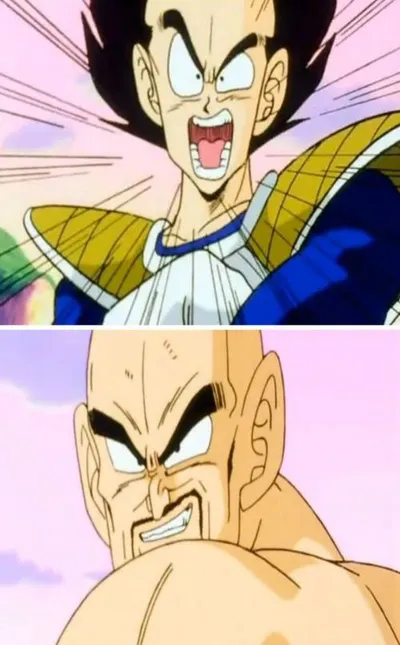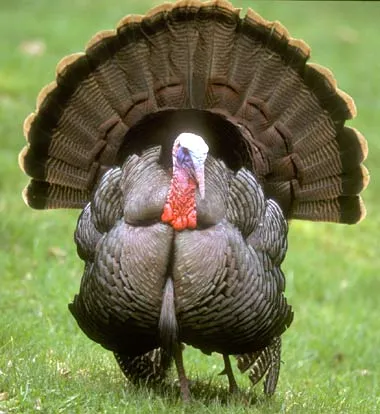
Caption the Google Chrome Meme Template
Google Chrome memes mock the web browser's notorious reputation for consuming excessive RAM and slowing down computers, depicting it as a resource-hungry monster that will eat all available memory regardless of how few tabs are open. The format resonates with anyone whose computer has struggled under Chrome's memory demands.
Caption this template- Category
- Situation Meme Templates
- Size
- 500 x 375 px
- Format
- Image
- Price
- Free, no sign up
Where the Google Chrome meme comes from
Google Chrome launched in 2008 and quickly became the world's most popular web browser, but also developed a well-documented reputation for memory leaks and high RAM usage. The meme format emerged in the early 2010s as users began sharing their Task Manager screenshots showing Chrome consuming gigabytes of memory for basic browsing.
How to caption the Google Chrome meme
Write a caption describing an innocent or minimal use of Chrome, such as opening a single tab, then describe the catastrophic RAM consumption that follows as if Chrome has gone rogue. Use it to commiserate with anyone who has ever watched their computer slow to a crawl after opening a browser with only a few tabs. Open it in the meme generator, or read how to make relatable memes for more.
Google Chrome caption ideas
Need a starting point? Try one of these on the Google Chrome template, then make it your own in the meme generator.
- Setup: Opened one tab to check the weather / Payoff: Chrome: I'll take 6GB of RAM, thanks
- Setup: Me, an innocent person searching one recipe / Payoff: Chrome, eating my entire laptop alive
- Setup: Closed 39 tabs to speed things up / Payoff: Chrome found a way to use more memory anyway
- Setup: My fan spinning like a jet engine / Payoff: It was always Chrome, it was never not Chrome
- Setup: 'Why is my computer frozen' / Payoff: Task Manager: Chrome (47 processes)
Best uses for the Google Chrome template
Use the Google Chrome template when the joke fits a situation format and the image can explain the feeling before the reader finishes the caption. It is strongest for relatable everyday moments, before-and-after jokes, and social observations.
This blank is 500 x 375 px and is a still image, so place the most important words where they stay readable after a feed crop. The wide frame works best when the caption stays centered so timeline crops do not cut off the joke.
The sample captions are more detailed, so trim aggressively before posting on small screens. Before exporting, read the caption once without looking at the image; if it still needs a long explanation, switch to a simpler setup or a more obvious related template.
Caption patterns to try
| Pattern | Why it works |
|---|---|
| Setup: Opened one tab to check the weather / Payoff: Chrome: I'll take 6GB of RAM, thanks | This works because it gives the reader a specific situation instead of a vague label. |
| Setup: Me, an innocent person searching one recipe / Payoff: Chrome, eating my entire laptop alive | This pattern keeps the setup concrete, which helps the template carry the reaction. |
| Setup: Closed 39 tabs to speed things up / Payoff: Chrome found a way to use more memory anyway | This is a useful direction when you want the punchline to feel personal or self-aware. |
Common mistakes with this blank
- Writing a caption that explains the whole joke instead of letting the Google Chrome image do part of the work.
- Placing text over the most expressive part of the image, especially faces, gestures, signs, or the main action.
- Using three different ideas in one meme. This template works better when it points at one clear situation.
- Exporting before checking the meme at phone size. If the smallest words blur together, shorten the caption first.