
Adding Your Logo to a Quote Image
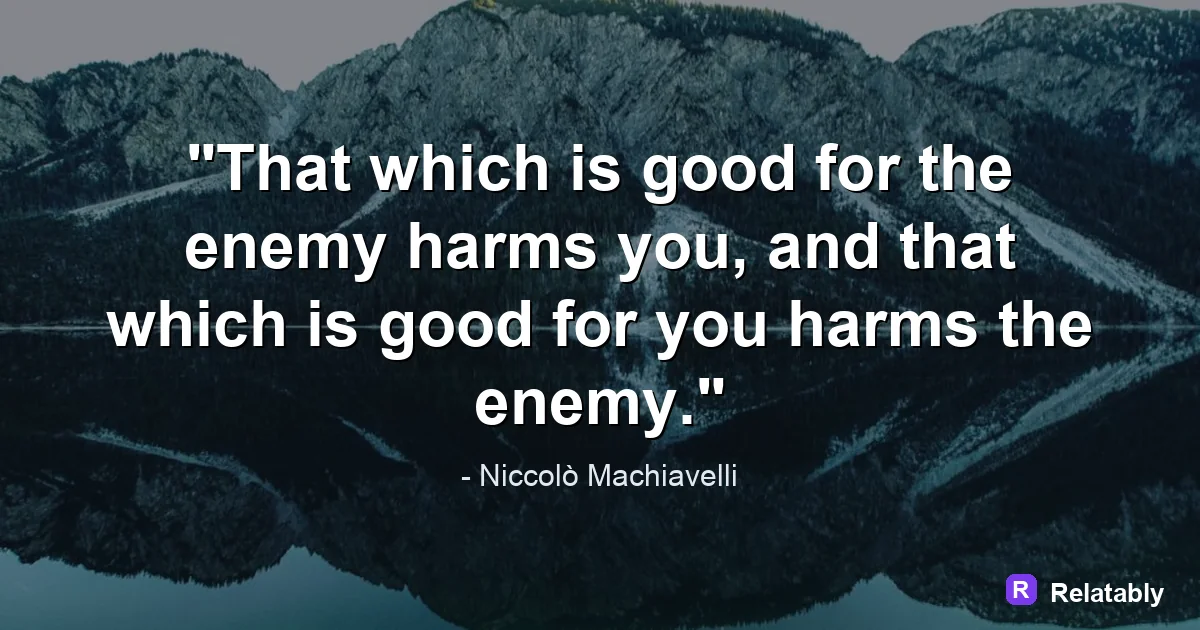
How to brand a quote image without crowding the message.
On this page
Add a logo to a quote image by placing a small, low key mark in a corner. Keep it faint enough that it never competes with the words but clear enough that people know the post is yours.
Choosing the corner that fits best
A logo almost always belongs in a corner, away from the main text. The corner you pick depends on where your words sit and where the platform adds its own buttons.
The bottom corners are the safest default because the eye reads the quote first and lands there last. Avoid the top center, since many apps place icons there.
Think about how each platform frames your image too. Some apps add a profile photo or a play button over part of the frame. Keeping your logo away from those zones means it never gets hidden behind something the app draws on top.
| Placement | When to use | Risk |
|---|---|---|
| Bottom right | Most quote layouts | Very low |
| Bottom left | Text sits on the right | Low |
| Top corner | Quote fills the lower half | App icons may overlap |
| Center | Almost never | Blocks the words |
Sizing the mark so it never steals focus
A logo that is too big shouts louder than the quote. That hurts the message and looks pushy. The goal is presence, not domination.
Keep the logo around five to ten percent of the image width. It should be readable up close but easy to ignore at a glance. If your eye goes to the logo before the words, shrink it.
Remember that most people view on a phone, where everything is already small. A logo that looks modest on a laptop can feel oversized on a phone. When in doubt, go smaller, because a tiny clear mark still does its job.
Engagement by logo size as percent of image width
Setting opacity for a clean watermark look
On busy or photo backgrounds, a full strength logo can clash. Lowering the opacity lets the mark sit gently on top without fighting the design.
Try around sixty to eighty percent opacity so the logo reads as part of the image rather than a sticker slapped on later. Keep it solid on plain backgrounds where it already blends.
- Lower opacity on busy photo backgrounds
- Keep full strength on solid colors
- Use a white mark on dark scenes
- Use a dark mark on light scenes
Keeping your logo the same on every post
The power of a logo comes from repetition. The same mark, same corner, and same size across every quote builds a look people start to recognize.
Pick a placement and stick with it. Consistency is what turns a small logo into a brand. The Quote Maker lets you upload your mark and reuse it in the same spot on every image.
Resist the urge to move the logo around for variety. The goal is the opposite of variety here. When the mark sits in the same corner every time, regular viewers stop noticing it on purpose and start recognizing it on instinct.
Logo handle versus a simple text credit
You do not always need a graphic logo. A small text handle, like your name or username, can do the same job and is faster to add.
Use a graphic logo when you have one and want a polished look. Use a clean text handle when you want speed or do not have art ready. Either way, keep it small and steady in the corner.
To go deeper, read quote images without Photoshop, make a quote image, and social media image sizes.
Make the advice practical in the Quote Maker
The fastest way to use this guide is to turn each design choice into a visible editor setting.
| Decision | Recommendation |
|---|---|
| Line choice | Use the quote library or paste a short line of your own. |
| Visual choice | Choose a calm background, then adjust contrast before changing fonts. |
| Export choice | Select the final platform size before downloading the image. |
- Use fewer words when the canvas is small.
- Check the design at phone size before exporting.
- Keep the author or source line visually secondary to the quote.