
How to Make a Quote Story Image (Instagram)
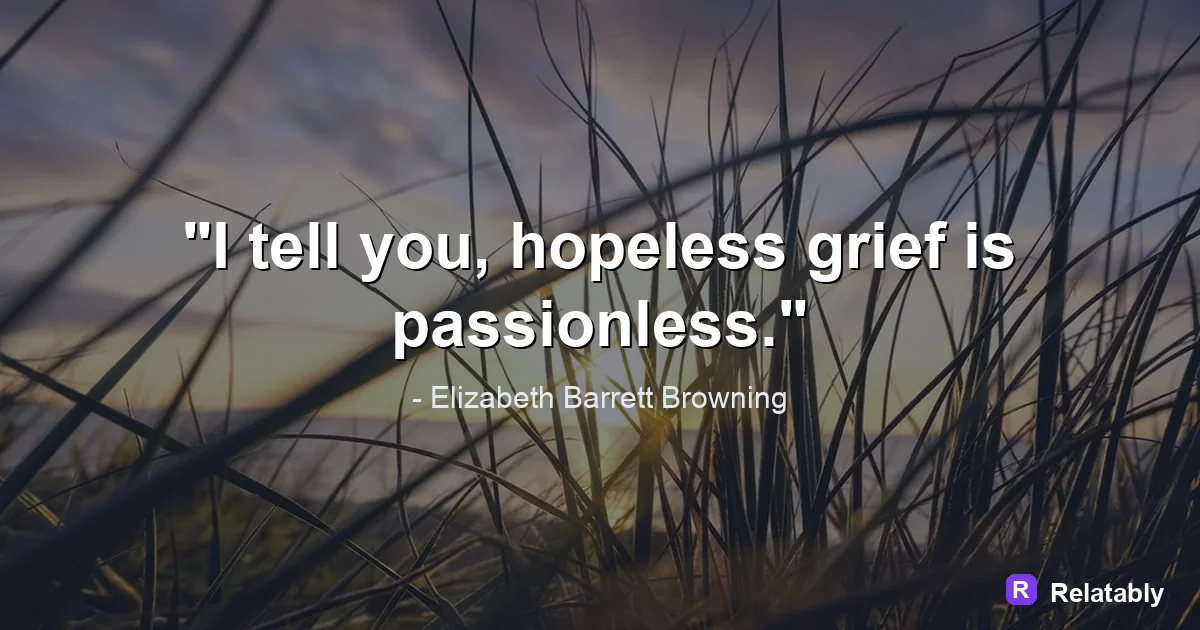
How to size and lay out a quote for a vertical story.
On this page
Build a quote story at 1080 by 1920 pixels (a 9:16 vertical frame), then keep your words inside the middle third so caps, profile bubbles, and the reply bar never sit on top of them. Export as a high quality PNG and post it to your story feed.
Size a story frame at 1080 by 1920
A story fills the whole phone screen, so it is taller than a normal post. The size that works almost everywhere is 1080 pixels wide by 1920 pixels tall. That is the 9:16 shape your camera already uses in video mode.
If you start with a square or a wide image, the app will crop it or pad it with bars. Begin with the full vertical canvas instead so your quote fills the screen edge to edge.
Building at the correct size from the start also saves you from quality loss. When you upload a small image and let the app stretch it to fit the tall frame, the text looks soft. A native 1080 by 1920 file stays sharp the whole way down.
Park your quote in the safe middle zone
Stories cover the top and bottom of the frame with interface buttons. The top holds the profile photo and progress bars. The bottom holds the reply bar and any stickers a viewer taps.
Keep all of your text inside the center vertical band. A simple rule is to leave about 250 pixels clear at the top and 250 pixels clear at the bottom of your 1920 tall canvas.
- Top 250 px: progress bars and your handle live here
- Bottom 250 px: the reply box and share icons appear here
- Center band: safe for your quote and credit line
- Side edges: leave 90 px of margin so words do not get clipped
Set quote text big enough to read while scrolling
People watch stories fast, often with one thumb. Your quote has only a couple of seconds to land. On a 1080 wide frame, body text around 70 to 90 pixels tall reads cleanly without zooming.
Use a short line length. Around four or five words per line keeps the eye moving down the tall frame instead of stretching sideways.
| Element | Text height (px) | Lines |
|---|---|---|
| Main quote | 70 to 90 | 3 to 5 |
| Author credit | 36 to 48 | 1 |
| Small tag or handle | 28 to 36 | 1 |
Add a swipe cue and a tap target
A story is a place people act, not just read. A small line near the bottom like tap to read more or hold to pause gives the viewer something to do. Place it just above the reply bar zone so it stays visible.
If you want replies, end the quote with a soft question. Which line hits hardest invites a tap on the reply box, and replies push your story higher in the order.
Stickers count as actions too. A poll or a question sticker placed below the quote, but still above the reply bar, gives quiet viewers an easy way to engage. Keep it small so it never competes with the words.
Build the layout in a few clicks
You do not need design software for this. The Quote Maker lets you pick the vertical story size, type your words, and drag them into the safe band.
Pick a dark photo or a solid color so light text pops. Then drop your quote in, add a small credit, and your story frame is ready to export.
- Choose the 1080 by 1920 story canvas
- Paste your quote and shrink it to fit the middle band
- Add a one line credit under the quote
- Drop a soft prompt near the bottom
- Preview on a phone before you post
Export PNG and check contrast before posting
Save your story as a PNG for the cleanest edges on text. PNG keeps letters sharp where a heavily squeezed photo file can blur them.
Before you post, glance at the brightness balance. Light words on a busy photo can vanish. A dim overlay behind the text fixes most readability problems.
It also helps to view the story on a real phone rather than a desktop preview. Hold it at arm's length the way a viewer would. If you can read every word in under two seconds, your story frame is ready to share.
Reading time per story before viewers swipe (seconds)
Story safe zones and sizes at a glance
A story fills the whole screen, so the edges are where your text gets covered by buttons.
Profile info sits at the top and the reply bar and sticker controls sit at the bottom, so anything there can be hidden. Center your quote in the middle band and it stays readable on every phone.
| Zone | Detail |
|---|---|
| Canvas size | 1080 x 1920 pixels (9:16) |
| Top reserved area | About the first 250 pixels |
| Bottom reserved area | About the last 250 to 300 pixels |
| Safe text zone | Roughly the middle 1080 x 1420 |
| File types | JPG and PNG |
To go deeper, read make an instagram quote post, how to make a pinterest quote pin, making quote images, and make a quote phone wallpaper.
Stories publishing checklist
Use this quick check before exporting so the design works in the place it will actually be posted.
| Decision | Recommendation |
|---|---|
| Recommended size | 1080 x 1920 |
| Safe-zone check | Keep text in the middle safe zone so interface controls do not cover it. |
| Export check | Preview the image at phone size and make sure the smallest text is still readable. |
- Keep the quote or meme text inside the safest central part of the canvas.
- Use PNG when text crispness matters most, or WebP when file size matters more.
- Write supporting post copy only after the image reads clearly on its own.