
Making a Quote Image in Your Browser, No Photoshop Needed
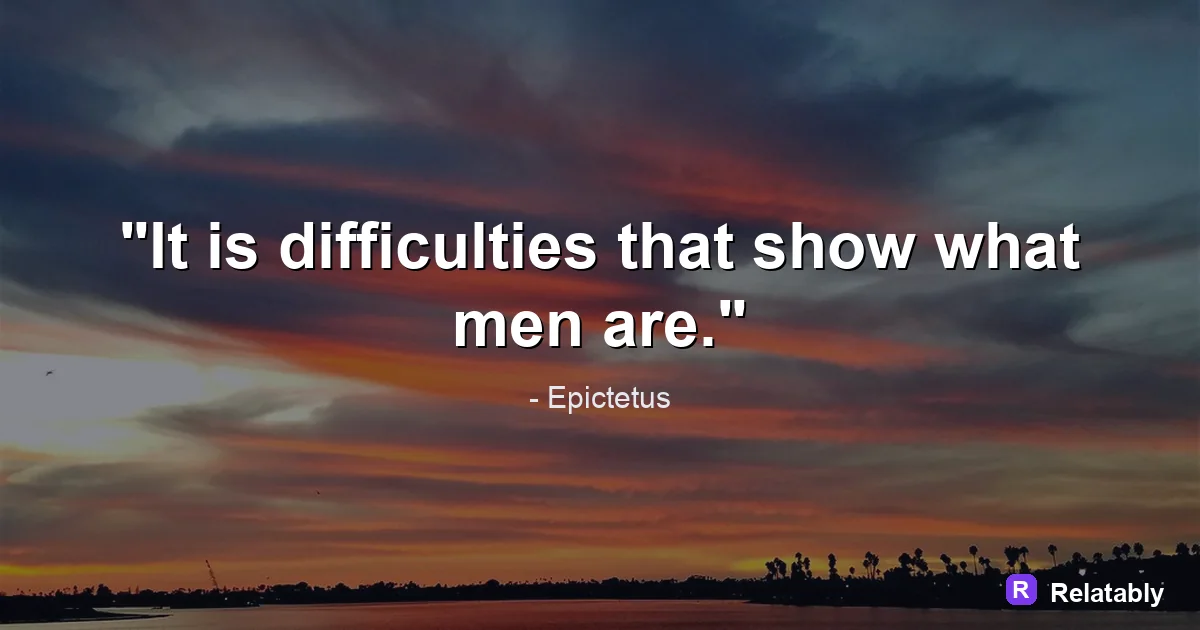
How to make a quote image with no design app and no skills required.
On this page
You do not need Photoshop to make a quote image. A free browser tool lets you type your line, pick a background and font, and download a finished image in minutes.
Why Photoshop is overkill for quote images
Photoshop is built for heavy photo editing, layers, and retouching. A quote image needs almost none of that. You are mostly placing text on a background, which is a simple job.
On top of that, Photoshop costs money, takes time to learn, and runs slowly on older machines. For one line of text, that is a lot of weight for a light task.
Many people open Photoshop, get lost in panels and tools, and give up before they finish a single image. A simpler tool removes that friction so you can focus on the words instead of the software.
What a browser quote tool does for you
A browser based tool handles the fiddly parts automatically. It centers your text, keeps your spacing even, and sets the right export size so you do not have to think about pixels.
Because it runs in a tab, there is nothing to install. You open a page, type, and download. The table below shows how the two approaches compare.
It also keeps your sizing simple. The tool already knows the common shapes for feeds, stories, and pins, so you pick one and export, rather than setting up a blank canvas by hand.
| Task | Photoshop | Browser tool |
|---|---|---|
| Install needed | Yes | No |
| Cost | Paid | Free to start |
| Learning time | Hours | Minutes |
| Add text to background | Manual | Built in |
Making a quote image step by step
The process is short. You can do the whole thing on a laptop or a phone without downloading anything.
Follow these steps in order and you will have a finished image quickly.
- Open a browser quote tool
- Type or paste your short line
- Pick a background color or image
- Choose one clean, readable font
- Center the text and set the margins
- Download your finished image
Getting clean results without manual editing
In Photoshop you would line up text by hand and guess at spacing. A browser tool keeps things aligned and balanced for you, so the result looks tidy without fiddling.
Keep your wording short, use strong contrast between text and background, and leave room around the edges. Those three habits do most of the work that fancy software cannot.
Time to a finished image
Exporting and sharing the right size
Once your image looks right, download it in the size your platform wants. A square suits most feeds, a tall canvas fits stories, and a vertical shape works for pins.
Save the file at full quality so it stays sharp. A browser tool sets these sizes for you, so you skip the guesswork Photoshop would leave you to handle.
When a quick edit beats a full app
There are moments when even a phone app is more than you need. If you just want to drop one line on a background and post it, a browser tool is the fastest path from idea to image.
Apps still have their place for heavy work like layered collages or detailed photo fixes. But a single quote on a clean field is a light task, and light tasks deserve light tools.
Skipping the install also means no updates to manage and nothing taking up space on your device. You open a tab, make the image, and close it when you are done.
- One line on a plain background
- A fast post you need right now
- Working on a borrowed computer
- Low storage on your phone
Doing it free in your browser
You can make the whole thing without paying or installing anything. Open the Quote Maker, type your line, choose a background and font, and download.
It runs in any browser, on a phone or a computer, so you can make a quote image anywhere you have a tab open.
Because there is nothing to set up, you can go from a thought to a finished, shareable image in just a couple of minutes.
To go deeper, read how to add a logo to a quote image, how to make a quote image, social media image sizes, and how to make a linkedin quote image.
Make the advice practical in the Quote Maker
The fastest way to use this guide is to turn each design choice into a visible editor setting.
| Decision | Recommendation |
|---|---|
| Line choice | Use the quote library or paste a short line of your own. |
| Visual choice | Choose a calm background, then adjust contrast before changing fonts. |
| Export choice | Select the final platform size before downloading the image. |
- Use fewer words when the canvas is small.
- Check the design at phone size before exporting.
- Keep the author or source line visually secondary to the quote.