
Making a Meme From Your Phone's Browser
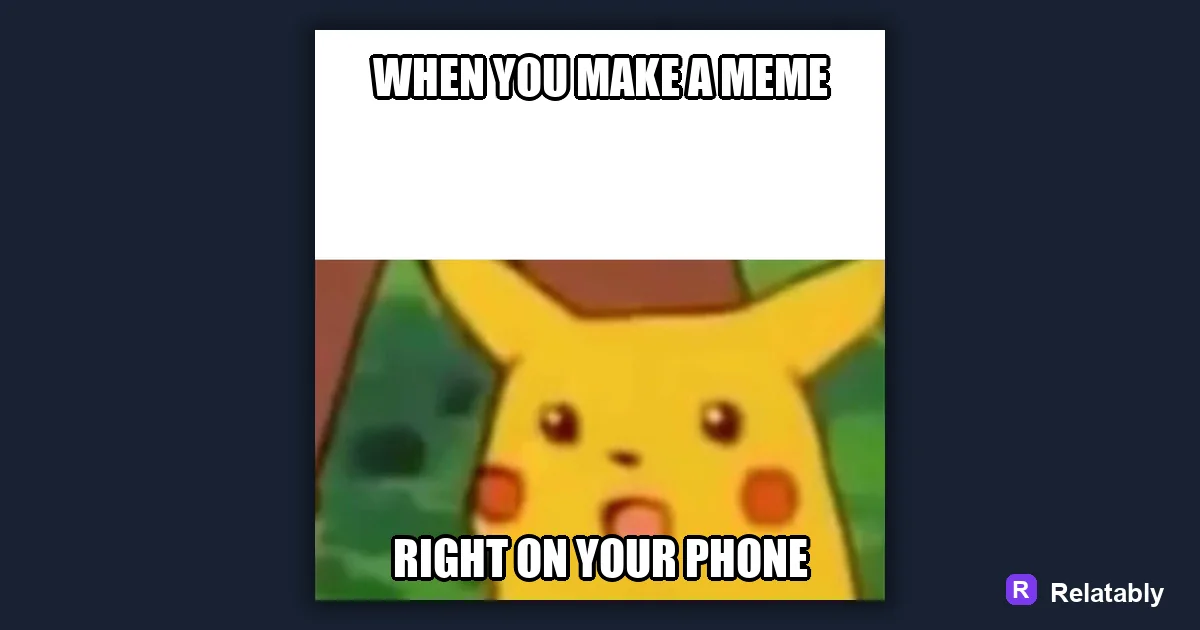
The fast, no-app way to make a meme on a phone in your browser.
On this page
To make a meme on your phone, open a meme tool in your mobile browser, pick a template or upload a saved image, tap to add your text, then export and save it straight to your camera roll. No app install is needed when you use a browser based tool.
Why your phone is enough to make a meme
Your phone already holds everything a meme needs. It has your photos, a keyboard, and a browser that can open a web tool in seconds. You do not need a laptop or a heavy editing app to get a clean, shareable result, which is why most memes today are made entirely on a phone.
The trick is using a tool built for small screens and touch. When the buttons are large and the text box is easy to tap, you can finish a meme in under a minute while waiting in line, riding the bus, or sitting on the couch.
Because everything stays on one device, the whole loop is fast. You spot something funny, snap or pick a photo, add a line, and post it before the moment passes. That speed is the real reason phone memes feel so natural and timely.
Make a meme on your phone in five taps
The fastest path is a browser based maker that opens without a download. Open the Meme Generator, then follow the steps below in order and you will have a finished meme in a minute or two.
Each step is a single tap or a short bit of typing, so there is no learning curve. Once you do it once, the order sticks and the next meme takes even less time.
- Tap to choose a template or upload a photo from your camera roll
- Tap the text area and type your line
- Drag the text to position it where it reads clearly
- Pick a font size that fills the space without crowding
- Tap export and save the image to your phone
iPhone versus Android steps that differ
Most steps are identical across phones, but saving and sharing work a little differently depending on your device. Knowing the small gaps ahead of time means you are not stuck hunting for a button after you finish the design.
The table below shows exactly where iPhone and Android part ways so you can move straight from export to sharing without a pause.
| Action | iPhone | Android |
|---|---|---|
| Save image | Long press, then Add to Photos | Tap download, find it in Gallery |
| Share fast | Share sheet to Messages or apps | Share icon to your app of choice |
| Crop a photo | Photos app edit and crop | Gallery or Photos crop tool |
Keeping text readable on a small screen
Text that looks fine while you type can turn to mush once the meme is shrunk inside a busy feed. Before you export, zoom out and check the words at the small size they will actually appear, because that is how everyone else will see them.
A bold font with an outline stays sharp over busy photos. Keep each line short so it does not wrap into a tiny pile of words that nobody reads. On a phone, two clean lines almost always beat one long one.
- Use one or two short lines, not a paragraph
- Add a dark outline so white text pops
- Leave a margin so words do not touch the edges
- Preview at small size before you export
How long a phone meme really takes
People assume editing on a phone is slow, but a browser tool is quick once you know the flow. Most of the time goes into typing the caption, while picking a template and exporting take only a few seconds each.
The chart shows rough times for the main steps so you can see where the seconds actually go and stop sweating the parts that are already fast.
Seconds per step on a phone meme
To go deeper, read how to make your own meme template, how to make a meme with your own photo, how to make a meme, and reaction memes.
Turn the idea into a finished meme
Use the template library as a creative constraint: pick the format first, then write the caption to fit that format.
| Decision | Recommendation |
|---|---|
| Template choice | Reaction, comparison, panel, classic, or blank utility |
| Caption test | Can someone understand the setup in under two seconds? |
| Final check | Does the image still work if the caption is read on a small screen? |
- Use a recognizable blank when speed matters.
- Use your own photo when the specific moment is more important than the format.
- Cut any caption word that explains what the image already shows.